 Auricast Manuals
Campaigns
A campaign is one order for a client: how long it runs, how many plays it is owed, when it may air, and which spots it plays. The Campaigns tab lists them and edits them.
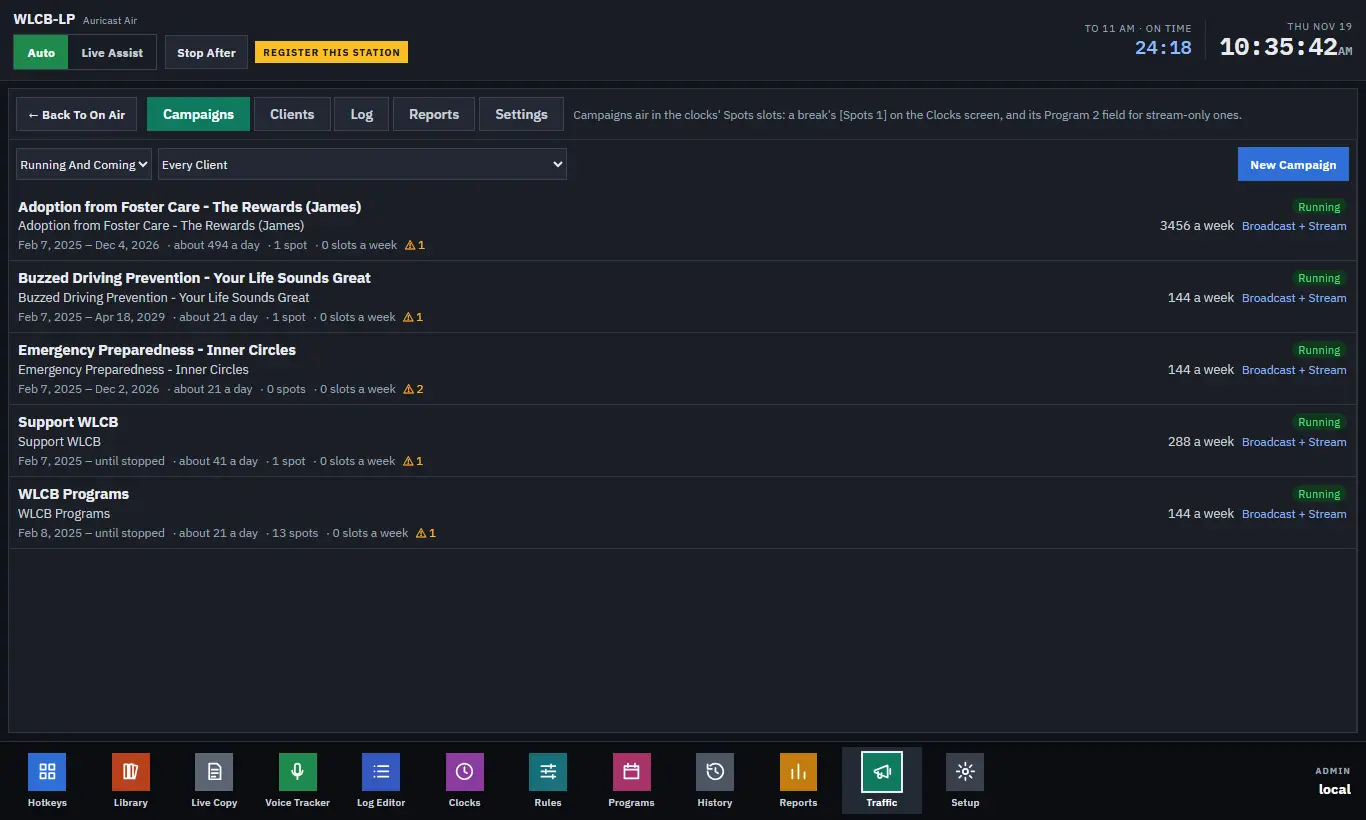
The Campaign List
At the top of the list, two filters:
- Running And Coming (the default), Ended or All.
- Every Client, or one client.
Each row shows the campaign's name and a status chip:
| Status | Meaning |
|---|---|
| Running | Inside its dates and not paused. |
| Starting Soon | Its start date has not come yet. |
| Paused | Held by you; it places no spots until you clear Paused. |
| Ended | Past its end date. |
Under the name: the client, the goal ("14 a week"), and Broadcast + Stream or Stream Only; then the dates, about how many plays a day it needs, how many spots (copy files) it has, and how many slots a week the clocks open to it. A warning triangle with a number means the campaign has warnings; hover over it, or open the campaign, to read them.
Creating A Campaign
- Select New Campaign.
- Give it a Name and choose its Client.
- Set the dates, the goal and where it airs (below).
- Mark the hours it may air.
- Add its copy with Add Spots.
- Select Save.
The Campaign Editor
| Setting | What it does |
|---|---|
| Name | What you call the order ("Spring Underwriting"). |
| Client | Which client it is for. |
| Starts | First day it may air. |
| Ends | Last day. Leave empty for a campaign that runs until you stop it. |
| Goal | How many plays: In All (over the whole campaign), A Week or A Day. |
| Where It Airs | Broadcast and Stream or Stream Only. |
| Hours It May Air | The hour grid. See Pacing And The Hour Grid. |
| At Most An Hour | The most plays in any one clock hour. Empty means no limit. |
| Minutes Apart | The least time between two plays of this campaign. The default is 45. |
| In The Break | Anywhere, First or Last in the break. |
| Priority | Sold, Bonus or Filler. |
| Rotation | In Order or By Weight, for campaigns with more than one spot. |
| Paused | Stops the campaign placing spots without deleting it. |
| Copy | The spots it plays. See Copy And Copy Rotation. |
| Linked | Keeps its spots together in one break, the first leading. |
| Notes | Anything you want to keep with the order. |
Revert puts the editor back to what was last saved. Remove deletes the campaign; its copy files stay where they are. If you close or leave the editor with unsaved changes, Auricast asks first.
Where It Airs
- Broadcast and Stream is for underwriting. The spot airs on Program 1, which goes to the transmitter (AM or FM) and the stream, and can also air in Program 2's own stream breaks.
- Stream Only is for a commercial that must reach streaming listeners only. It airs only in a split break's Program 2 slots, never on the broadcast.
A campaign never airs anywhere it is not cleared for. Your station may also require each spot to be marked Cleared For Broadcast before it airs on the broadcast. See Copy And Copy Rotation.
Warnings And Pace Notes
When you open a saved campaign, the editor tells you something like "Needs about 6 a week; the clocks open 17 Spots slots a week to it in its hours." This is calculated from the campaign as last saved, so save changes to see it update.
Warnings appear in a box under it. The common ones are:
- The campaign has no copy.
- Its goal needs more plays than its hours and most-an-hour limit allow.
- Its goal needs more plays than the clocks have Spots slots for, or no clock in its hours has a Spots slot at all, so it cannot air.
- A copy file cannot be found in the library (the copy row shows "not found").
Fix the cause, or ask the Program Director for more Spots slots. See How Spots Reach The Air.