 Auricast Manuals
Setup Overview
Setup is where you run the station behind the screens: where sound goes, who can sign in, where the music lives, what gets mailed, and how new shows arrive. Open it from the bottom bar of the main screen. This manual covers the parts an Admin looks after.
Setup is a menu of sections down the left side. The section you open is remembered on that PC. What you see depends on your role:
| Section | Who sees it |
|---|---|
| Overview, Studios & Remotes, Hotkeys, Appearance, System | Everyone who can open Setup |
| Categories, Timed Events, Voice Sets, Weather, Outside Sources, Ingest | Program Directors and Admins |
| Outputs & Streams, Email, Mounts & Folders, Users & Access, Processing, Now Playing | Admins only |
Operators cannot open the sections that change the station. Traffic Managers work in the Traffic screen and do not use Setup. Categories, Timed Events, Voice Sets, Weather and Hotkeys belong to the Program Director's manual; the rest are in this manual, one page each.
The Overview Section
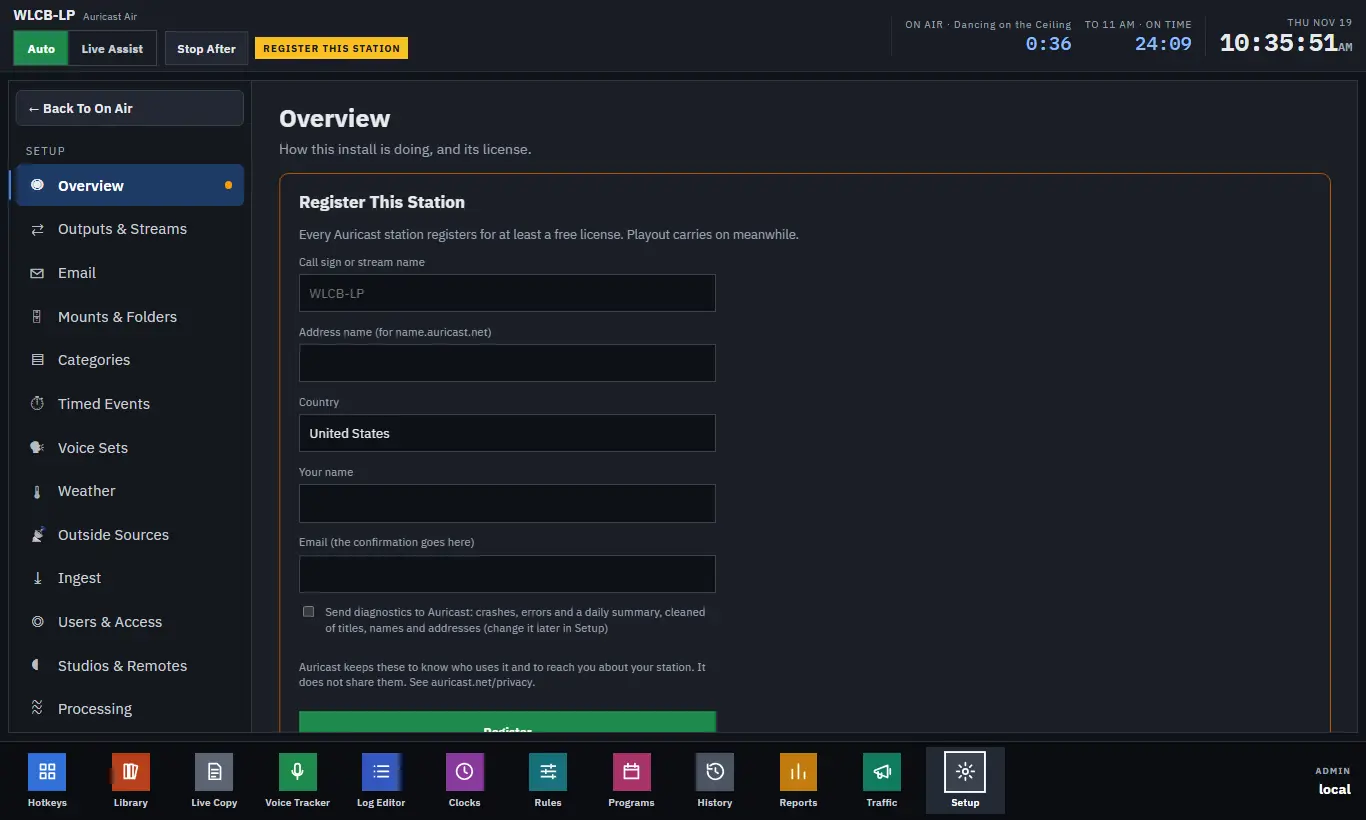
Overview is the first thing to check each day. The Health card lists:
| Line | What it tells you |
|---|---|
| Version | The Auricast version running, and how long it has been up |
| Station | The station's name |
| Outputs, Streams | One chip per sound output and stream, with a dot that is lit while it is up |
| Library | Where the main library is, how many tracks and categories it holds, and any held edits. If the library is unavailable, a warning says why; its tracks are kept as they were |
| Locations | Each extra library location, its file count, and a warning if it is down |
| Station folder | Where the station's settings are kept, with counts of clocks, saved hours, programs with a due time and users |
| As-aired log | Where the log of what played is kept, and its size |
| Emergency | The emergency playlist folder and how many files it holds, or "none set" |
| Backups | Where backups go, and the newest one with its time, or "off" |
| Alert mail | Where alerts are mailed, or "off" |
| Listener counts | Whether listener counts are being read from the streams |
If an output or stream dot is dark, go to Outputs and Streams. If Alert mail says "off", no one is being told when something fails: set up Email and Alerts.
Registering The Station
A station that has not registered shows a Register This Station card at the top of Overview. Every Auricast station registers for at least a free license, and playout carries on while you do it. Only Admins see the card.
The License Card
The License card shows your plan (Free, Paid, or Paid in its grace period), who it is for, and when a paid plan runs until. It also lists the paid features you have. Remote Broadcasting and Voice Tracking are paid features. If a paid plan is not connected to Auricast Connect, the card says so, because the paid plan needs that connection.
During a grace period, the card counts down the days left before paid features end.
Relay Hours And Your Own TURN Key
Remotes that cannot reach the station directly are relayed. On a paid plan the card shows how many relay hours you have used out of this month's allowance.
If you would rather have no limit, Admins on a paid plan can enter their own Cloudflare TURN key under Own TURN Key: type the key ID and API token and choose Use My Key. Remotes then relay through your key, billed to your Cloudflare account, with no monthly limit. Remove goes back to Auricast's relay.
What Is Set On The Box Itself
A few things are not in the browser. The music share, the box's stream password and some first-run choices are set on the server with the auricast-setup command and take effect when playout restarts. The System page notes which these are. Passwords you type in Setup are never shown back to you afterwards.