 Auricast Manuals
Library Storage
Auricast needs to reach your music. It can be a folder on the box, a Windows or NAS share (SMB), or an NFS export. A station can use several places at once, called locations.
The Main Location
One location is main: the library itself. Paths inside Auricast that have no prefix belong to it (Music/Jazz/song.flac), so your categories, clocks and history all point there. It is at the path AIR_LIBRARY in the settings file, /srv/music by default. Choose one of these two ways to fill it.
A Folder On The Box
Put or mount your music at AIR_LIBRARY and leave NAS_SHARE empty. Make sure the auricast user can read it.
A Network Share
Set these in /etc/auricast/air.env:
| Setting | What it does |
|---|---|
NAS_SHARE | The share to mount, for example //nas/Music. It is mounted read-only at AIR_LIBRARY. |
NAS_USER | The login for the share. |
Then store the login's password as a secret (it is never written in a file):
sudo auricast-setup secret nas-password
sudo systemctl restart auricast-air
This needs cifs-utils installed. The service mounts the share when it starts.
More Locations In The Browser
Other places, such as a folder of uploaded programs, are added in Setup → Mounts & Folders. Admins can change them; Program Directors can look.
Notice that each location shows whether it is mounted, how many files it has and when it was checked. If a location is down, the reason is written in plain words, such as "the password was refused" or "the server did not answer".
Click Add Location and fill in:
| Setting | What it does |
|---|---|
| Name | A name you choose, such as Program Uploads. Paths into this location start with @ and the name, for example @Program Uploads/Sports Weekly/part1.mp3. |
| Type | Folder On This Box, Windows/SMB Share (Windows, NAS) or NFS Share. |
| Address | A path on the box, //host/share for SMB or host:/export for NFS. |
| Login, Password, Domain | For SMB. The password is stored encrypted and never shown again; the field says "set" once one is saved. |
| SMB version | 3.0 is the usual choice; use 2.1 for older devices. |
| Read-write | Tick only if Auricast needs to write there. Left unticked, the location is read-only. |
Click Test before saving. It tries the location, lists the top folders it finds and lets go again, so you know the address and login are right. Then Save. Network locations are mounted by the helper service auricast-mount, under /srv/auricast, with the rules that mounts are read-only unless you ticked read-write and may not run programs from the share.
On each row you can Mount or Unmount, Edit or Remove a location. Remove is refused while a category, clock, cart or program uses a file in it, and tells you which.
If A Location Goes Away
Each location is watched on its own. One that is down keeps its tracks as the library had them, the others keep updating, and playout skips any file that will not open. Auricast mails an alert when a location is unavailable and again when it is back. A location that is unreachable at boot does not hold up playout; it is retried, starting with a few seconds and backing off to two minutes.
The Station's Other Folders
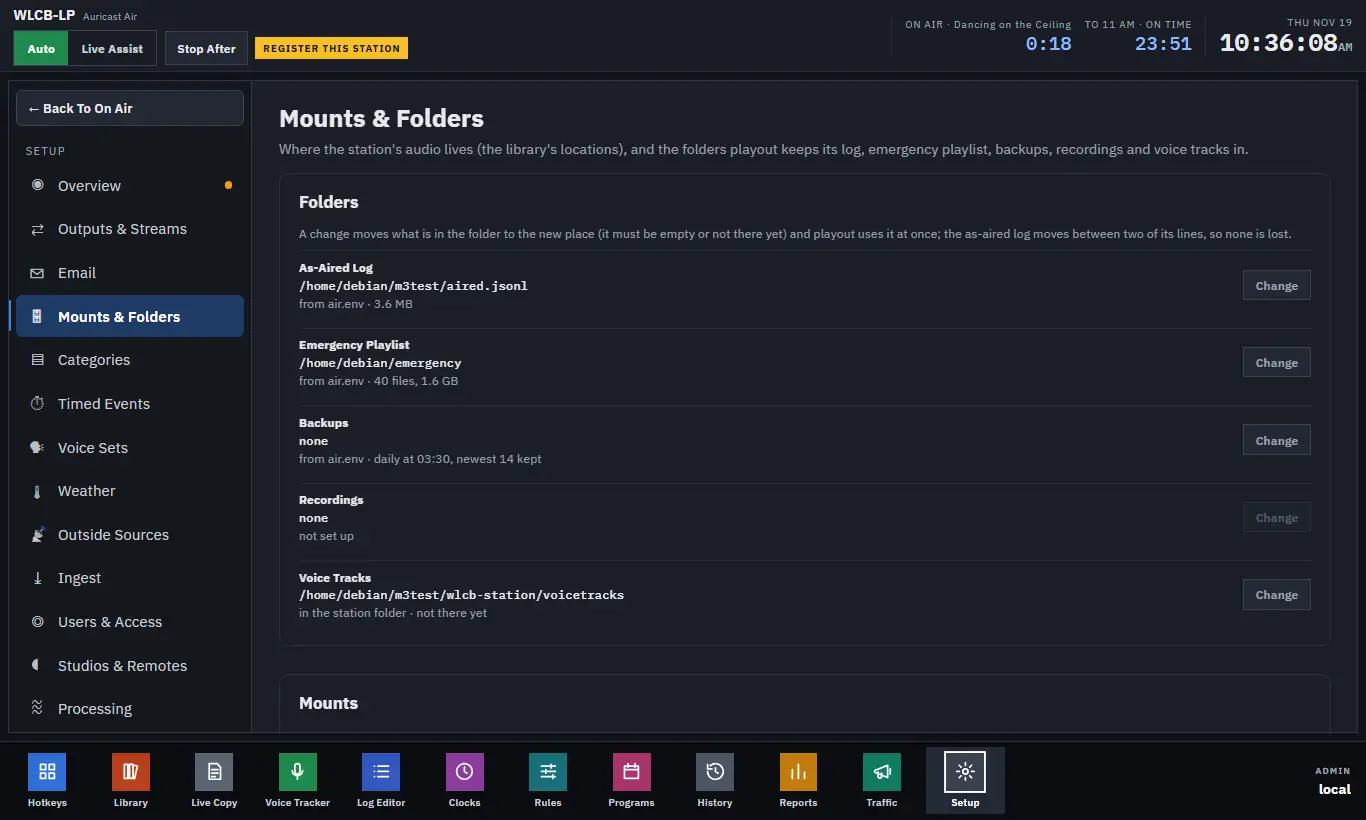
The second card on the same screen, Folders, shows where playout keeps its own files, with what is in each (files and size) and a Change button.
| Folder | What it holds |
|---|---|
| As-Aired Log | What actually played. Reports and History read it. |
| Emergency Playlist | The local music played if the schedule cannot. |
| Backups | The daily backup, made at 03:30 with the newest 14 kept. |
| Recordings | The recorder's local folder. |
| Voice Tracks | Voice Tracker recordings. |
A change applies at once and moves what is in the folder. The new folder must be empty or not exist yet, and playout must be able to write to it. If the move fails partway, the old folder stays in use and the screen says what is where. The as-aired log moves between two of its lines, so none is lost.