 Auricast Manuals
Signing In The First Time
With the service running, you can open the screens from any PC on the network.
Open The Address
- In a browser, go to
https://<box name or IP address>:8443/. - If the browser warns that the connection is not private, that is the box's self-signed certificate (see Remote Access And HTTPS). Accept it. This happens once per PC and browser.
- If the station is not registered yet, you are asked to register first. Follow the steps in First-Time Setup; the page carries on by itself once you open the e-mailed link.
- Sign in with the name and password you gave
auricast-setup user add.
From outside through Auricast Connect, use your station's <station>.auricast.net address instead. After the password you are asked to set up a second factor.
Setting Up The Second Factor
This is only needed when signing in from outside.
- Sign in with name and password. The screen shows Set Up Your Second Factor with a QR code.
- Scan it with an authenticator app (Google Authenticator, Microsoft Authenticator, 1Password and others), or type the key shown under the code.
- Enter the 6-digit code the app shows and click Verify And Sign In.
Next time, you enter the current code after your password.
If Your Password Is Too Short
A password shorter than the FCC's strong-password rule (15 characters, no dictionary words with numbers added, not containing your name or the station's name) is accepted, but you are taken to change it at once before you can do anything else. The Change Password button is also in the top bar whenever you want to change it later.
What You See
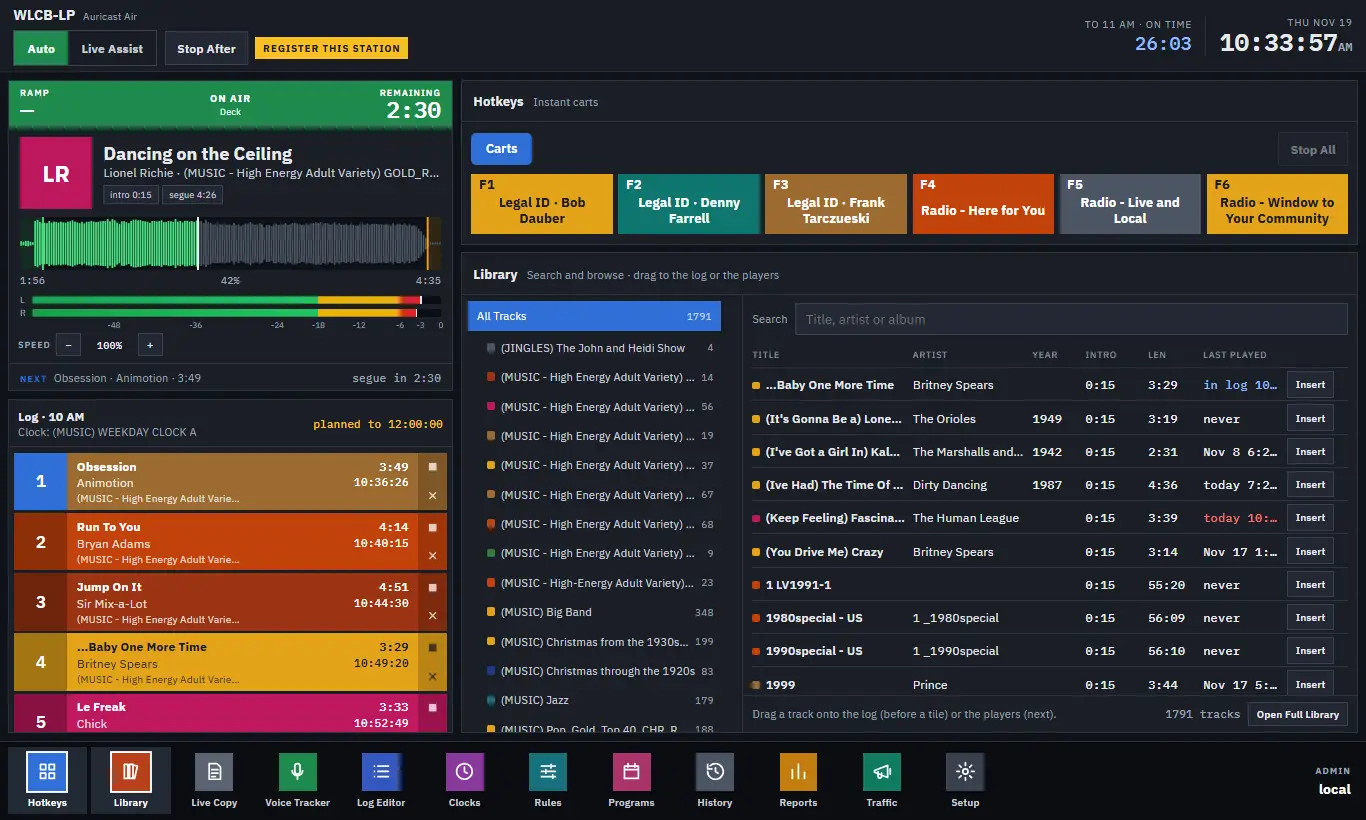
The first screen is On Air. Notice the bottom bar of modules and the Setup entry; Admins see every Setup section, other roles only the ones for them. Open Setup → Overview to confirm the station is healthy: every output and stream green, the library counted, and the plan shown.
Add The Other Users
The first Admin adds everyone else in Setup → Users & Access. Two ways:
- Invite User: type a name, an e-mail address and a role. Auricast mails a link, good for 48 hours and one use, where the person chooses their own password. Without a mail account set up, Auricast shows you the link to pass on. You can Withdraw an invite that is still open.
- Add A User: give a name, role and a password (15 characters or more) yourself.
| Role | Can do |
|---|---|
| Operator | Runs On Air. |
| Program Director | Everything an Operator can, plus schedule and library setup. |
| Traffic Manager | Traffic only. |
| Admin | Everything, including Setup for outputs, mounts, users, mail and processing. |
Studio PCs that sign in on their own can be listed under Trusted PCs on the same screen. An Admin can also Reset a person's password by mail, set a new password, or Remove the user.
If You Cannot Sign In
- Wrong address or port: use
https, and:8443. - No users yet:
sudo auricast-setup checksays so. Add one withsudo auricast-setup user add <name> admin. - A lost authenticator phone: another Admin uses Clear in Code From Outside.