 Auricast Manuals
Updating Auricast
Before You Update
Updating restarts playout if it was running. Do it at a quiet time, when a short gap would matter least. Your settings, secrets, station folder and backups stay where they are.
- In Setup → Overview, note the current version on the Health card.
- Make sure a recent backup exists. The Health card shows the newest, and the daily backup is made at 03:30.
Update
Run the same command you installed with:
curl -fsSL https://get.auricast.net/install.sh | sudo shIt downloads the current release, checks it, and installs it over the one you have, saying which version it updated from and to. To see whether there is anything newer first, compare https://get.auricast.net/current.txt with the version on the Health card.
Installing the package does these things:
- Replaces the program and helper scripts.
- Leaves
/etc/auricast/air.envas it is. It is only written when none exists. - Restarts the Auricast service if it was running, and the mount helper if the station is set up. A service that was stopped stays stopped.
When it finishes, run:
sudo auricast-setup checkThen open Setup → Overview and check the new version, green outputs and streams, and the library count.
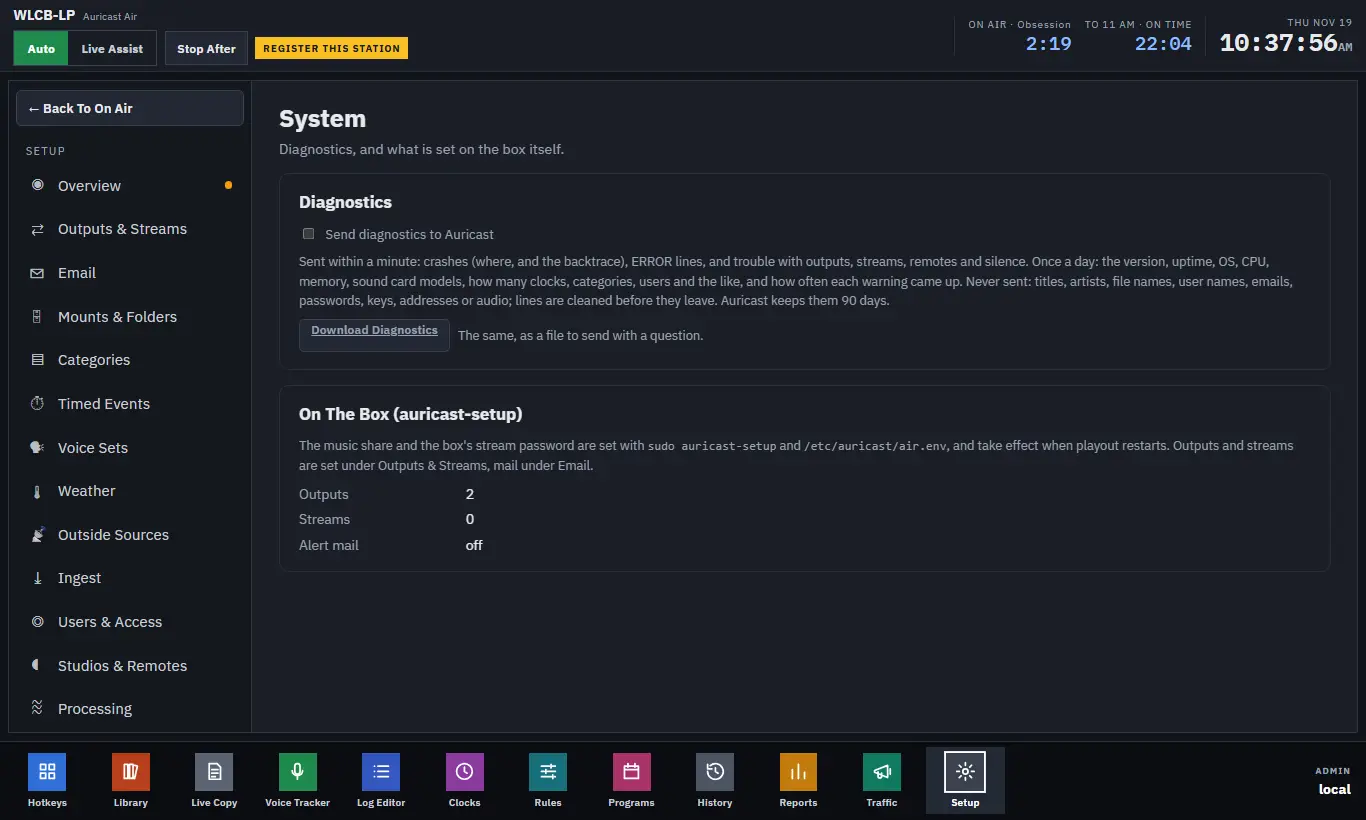
Setup → System, shown here, lists what is set on the box itself and the diagnostics switch. Auricast has no update button in the screens yet: updating is done with the package, as above.
Backups
The daily backup holds the station folder and the as-aired log, and the 14 newest are kept in the backup folder (AIR_BACKUP_DIR, changeable in Setup → Mounts & Folders). Copy that folder to another machine from time to time, so a failed disk does not take the backups with it.
Diagnostics
Setup → System has Send Diagnostics To Auricast, off until an Admin turns it on. It sends crashes, errors, and a daily summary, cleaned of titles, names, addresses and audio. Download Diagnostics makes the same information as a file you can send with a question, whether sending is on or off.