 Auricast Manuals
Sound Devices, Outputs And Streams
Auricast plays two programs, Program 1 and Program 2. A typical station sends Program 1 to the transmitter feed and Program 2 to the web streams, but you decide. Each program goes to one or more outputs (a pair of channels on a sound device) and to any number of streams (Icecast servers).
See What The Box Has
To list the sound devices Auricast can use:
auricast-setup devicesEach line is a device name. These are the names you choose from in Setup. USB interfaces, onboard sound and an AES67 device all appear here. If a card you plugged in is missing, check that Linux sees it and that the auricast user is in the audio group (the package does this).
Set Outputs In The Browser
Admins set outputs in Setup → Outputs & Streams. Changes apply at once without restarting playout.
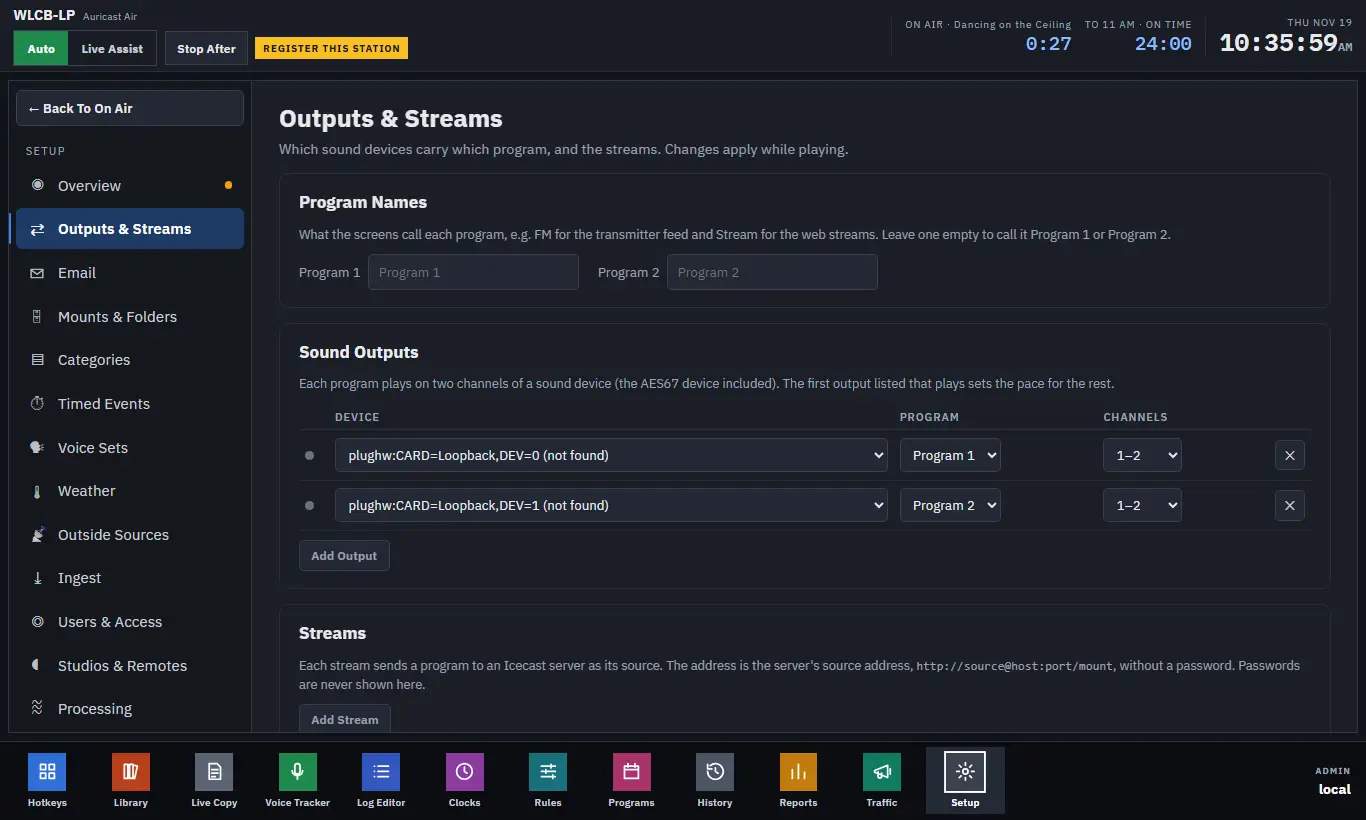
Notice the green dot beside each output and stream: green means it is playing or sending.
Program Names
Under Program Names, give each program the name your staff use, for example FM and Stream. Leave one empty to call it Program 1 or Program 2.
Sound Outputs
Each row of the Sound Outputs table is one output.
| Setting | What it does |
|---|---|
| Device | The sound device, chosen from the list the box found. A device that is no longer there is marked "(not found)". |
| Program | Which program plays on it. |
| Channels | Which pair of channels on the device: 1 and 2, 3 and 4, and so on up to 15 and 16. |
Click Add Output for another row, and the cross to remove one. You can send one program to several devices, and different programs to different pairs of the same device, for example Program 1 on channels 1 and 2 and Program 2 on channels 3 and 4 of an AES67 device.
The first output that is working sets the pace for the others. If you use AES67, list the AES67 device first so the network clock is the station clock.
When you change a row, only that output is affected: a device you changed drops out for about a second while it opens, and the rest keep playing. If an output fails, Auricast keeps trying to reopen it every few seconds and the others carry on.
Streams
Each row of the Streams list sends one program to an Icecast server.
| Setting | What it does |
|---|---|
| Program | Which program to send. |
| Format | Ogg, MP3 or AAC. MP3 and AAC need ffmpeg installed. |
| Bitrate | In kbps; the choices depend on the format. |
| Source address | The server's source address, written http://source@host:port/mount, without a password. |
| Password | The box's stream password, or one set for this stream alone. Passwords are never shown. |
The box's stream password is the secret stream-password (see First-Time Setup). To give one stream a different password, type it into the field "Set one for this stream". Use The Box's goes back to the shared one. Click Add Stream for more rows.
Finish with Save And Apply. Discard throws away unsaved changes. A changed stream reconnects; the rest are untouched.
AES67 (RAVENNA)
Auricast does not speak AES67 itself. It plays to an ALSA sound device, and an AES67 bridge on the box (the RAVENNA driver with an AES67 daemon) presents the AES67 network as such a device, named RAVENNA in the stations that use it. Setting up the bridge is part of preparing the box, before Auricast. What Auricast needs to know:
- Install and configure the bridge so its device shows up in
auricast-setup devices. Its streams use the sample rate 48 kHz. - The box needs a PTP clock on its network (a grandmaster, which most AES67 and Dante equipment provides).
- The Auricast service starts after the AES67 daemon at boot, so the device is ready.
- After a cold boot the RAVENNA driver can hold the outputs for around 40 seconds before sound flows. That is the driver, not a fault. Playout comes up by itself afterwards.
- If the network clock is lost, the device may stall instead of failing. Auricast stalls with it and recovers when the clock returns.
Other Output Settings In The Settings File
| Setting | What it does |
|---|---|
AIR_STREAM_NAME | The name sent to streams. |
AIR_LISTENERS | The Icecast status address (like http://host:8000/status-json.xsl) used for listener counts in reports. |
AIR_EXTRA | Anything else to pass to the playout program, for example --latency-ms 100. |
The render-ahead (latency) is long by default so playout is steady. When you define studios or remotes it becomes 100 ms so talkback is usable. You normally leave it alone.