 Auricast Manuals
Editing The Log
The Log Editor shows the log ahead, hour by hour. Operators can use it to look at what is planned and to make small changes. Open it from the bottom bar.
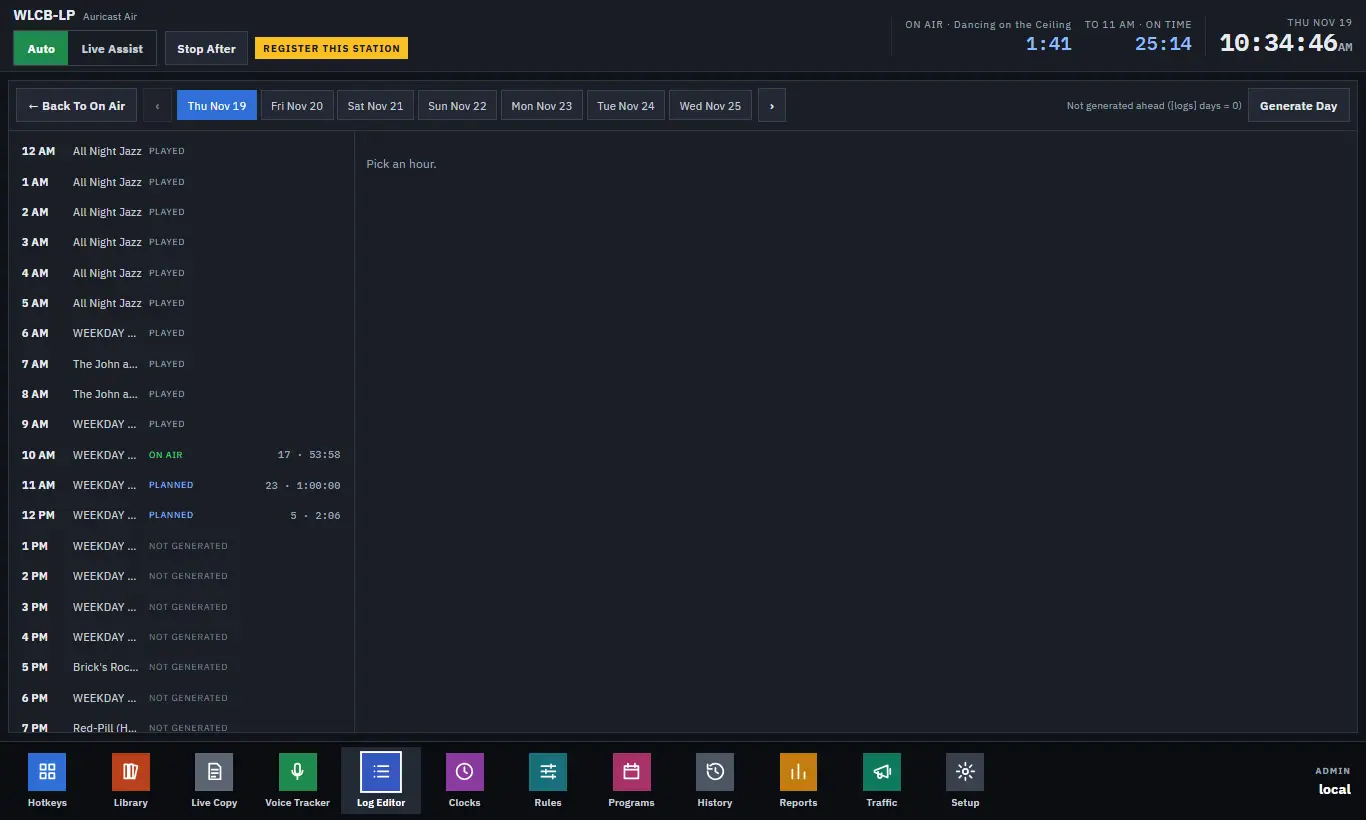
What You See
- A strip of days: the next seven days, with ‹ and › to move.
- The day's hours, each with its clock, its status and its length. The status says whether it was played, is on air, is planned, saved, or not generated yet.
- The selected hour's table: start time, title and artist, step, length, intro. Break notes show as note rows above the item they belong to.
A line above the table says what kind of hour it is:
| It says | Meaning |
|---|---|
| Played: what aired, from History | The hour is over. Look in History. |
| In the live log | Edits here are the same as edits on the On Air screen, and are saved. |
| Saved log | A log prepared ahead. It plays as saved when its time comes. |
| Not generated | Nothing prepared yet. Its clock will be planned when it comes. |
What An Operator May Change
On an hour that can be edited, each item has small buttons:
| Button | What it does |
|---|---|
| ▲ / ▼ | Move up or down. |
| + | Insert a track before it, chosen from a library search. |
| ⇄ | Replace it with another track. |
| ✕ | Remove it. |
Insert At End adds a track at the end of the hour. In a saved hour, 🎙 and Voice Track At End insert a voice track slot; see The Voice Tracker.
Start times are recalculated after each change.
The Near-Air Limit
An Operator may edit an hour only when what they change is more than 10 minutes from air. Anything closer is refused with a reason. A Program Director or Admin may change it. Hours still to come have no such limit. When the hour you want is close, use The Log Column for Play Now and Continue, which are always open to you.
What You Cannot Do
Generating, regenerating and clearing hours (Generate Day, Generate, Regenerate, Regenerate Hour, Clear) are for Program Directors and Admins. If a day or hour shows not generated and you need it, ask one of them.
Hours that are already past are not editable. Hours that are on air or loaded play as planned; edits to them are On Air edits.
Tips
- Check the hour's length against the hour. If it runs well over, remove a song; if short, insert one.
- A removed item with a fixed time hands the time to the item after it.
- Edits are saved with the hour. A restart plays the hour as you edited it.