 Auricast Manuals
The On Air Screen
On Air is the screen you work from. Everything you need while the station is playing is on it, and the other screens are one press away on the bottom bar.
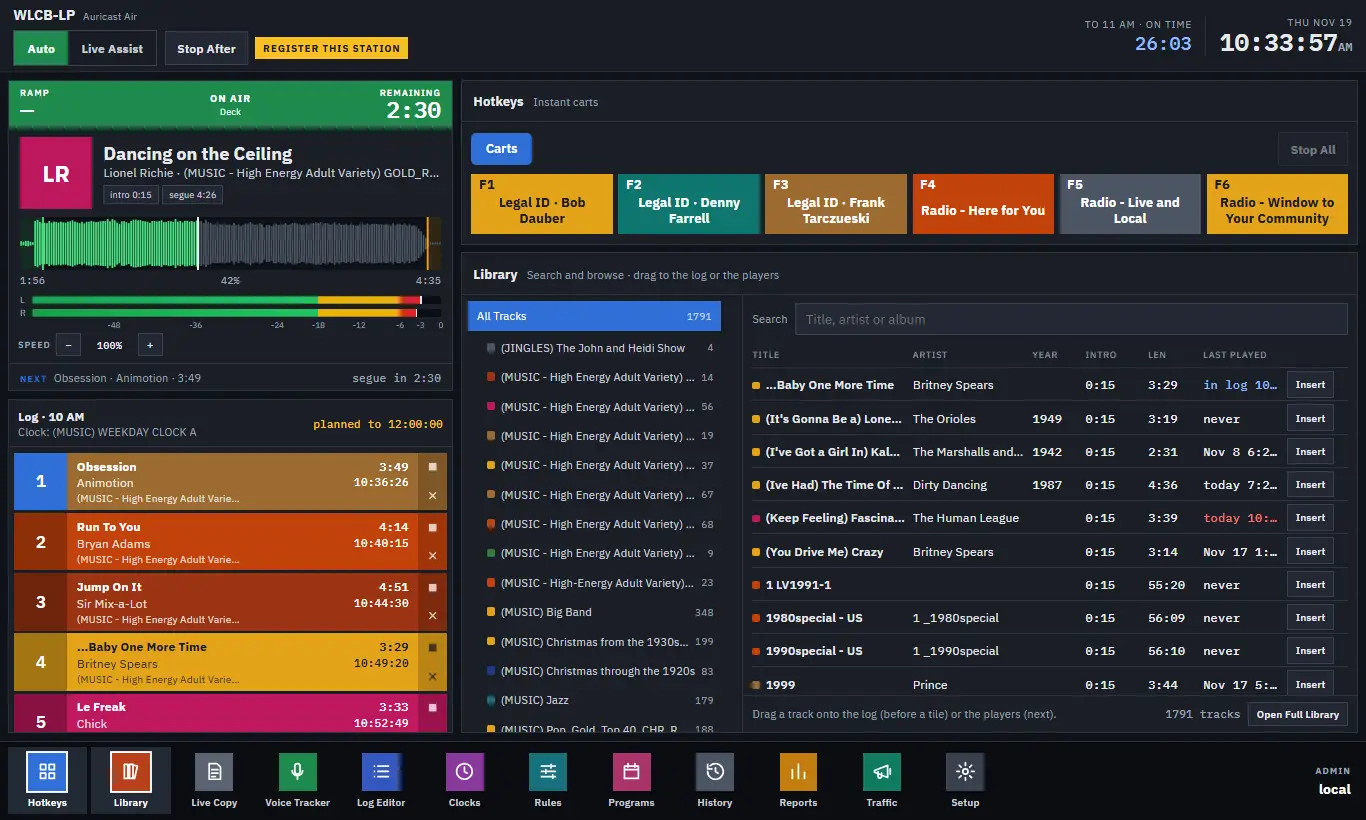
What You See
| Where | What it is |
|---|---|
| Top | The header: the station name, the mode switch, flags, the time to the next fixed time, and the clock. See The Header And Status. |
| Upper left | The deck: the item on air, with its countdowns and waveform. See The Deck. |
| Lower left | The log: what is coming, in order, in colored tiles. See The Log Column. |
| Right | Up to two modules stacked, usually Hotkeys and Library. See Hotkeys and The Library. |
| Bottom | The bottom bar: a button for each module, and your name with Password and Sign Out. |
Nothing on this screen scrolls as a whole. The log and the modules scroll inside their own boxes, and the whole screen is scaled to fit your window, so it works on a laptop and on a large monitor alike.
The Bottom Bar
Each button opens a module. They come in two kinds.
Panels beside the log. Hotkeys and Library open on the right of the On Air screen. At most two are open at once. Pressing a closed one opens it, and if two are already open the one you opened longest ago closes. Pressing an open one closes it, except the last one, which stays. The panels you leave open are remembered on this PC, so the screen comes back the way you left it.
Full screens. Voice Tracker, Log Editor, History, and the rest fill the main area in place of On Air. Press any button on the bar to go back to On Air.
| Button | What it opens |
|---|---|
| Hotkeys | The cart wall, beside the log |
| Library | Search and browse tracks, beside the log |
| Voice Tracker | Record voice tracks. See The Voice Tracker. |
| Log Editor | The log ahead, hour by hour. See Editing The Log. |
| Clocks, Rules, Programs, Reports | The Program Director's screens. You can look, but changing the schedule is not an Operator's job. |
| History | What aired. See History. |
| Setup | Station settings. Operators see only a few sections; see Appearance And Keyboard Shortcuts. |
The Traffic button is for Traffic Managers and does not appear for Operators.
The button for whichever screen is showing is highlighted.
Staying On Air While You Look Around
When a full screen is open, the header keeps showing what is on air (ON AIR and the item's remaining time), so you can read History or the Log Editor without losing track of the station.
Who Can Do What
| Role | On Air |
|---|---|
| Operator | Everything on this page and the following ones: change mode, play, hold, Play Now, set Continue, fire carts, use the Library and Voice Tracker. Edits to the log are limited near air. |
| Program Director | The same, with no near-air limit, plus the scheduling screens. |
| Admin | The same, plus Setup. |
| Traffic Manager | Traffic only. |