 Auricast Manuals
The Library
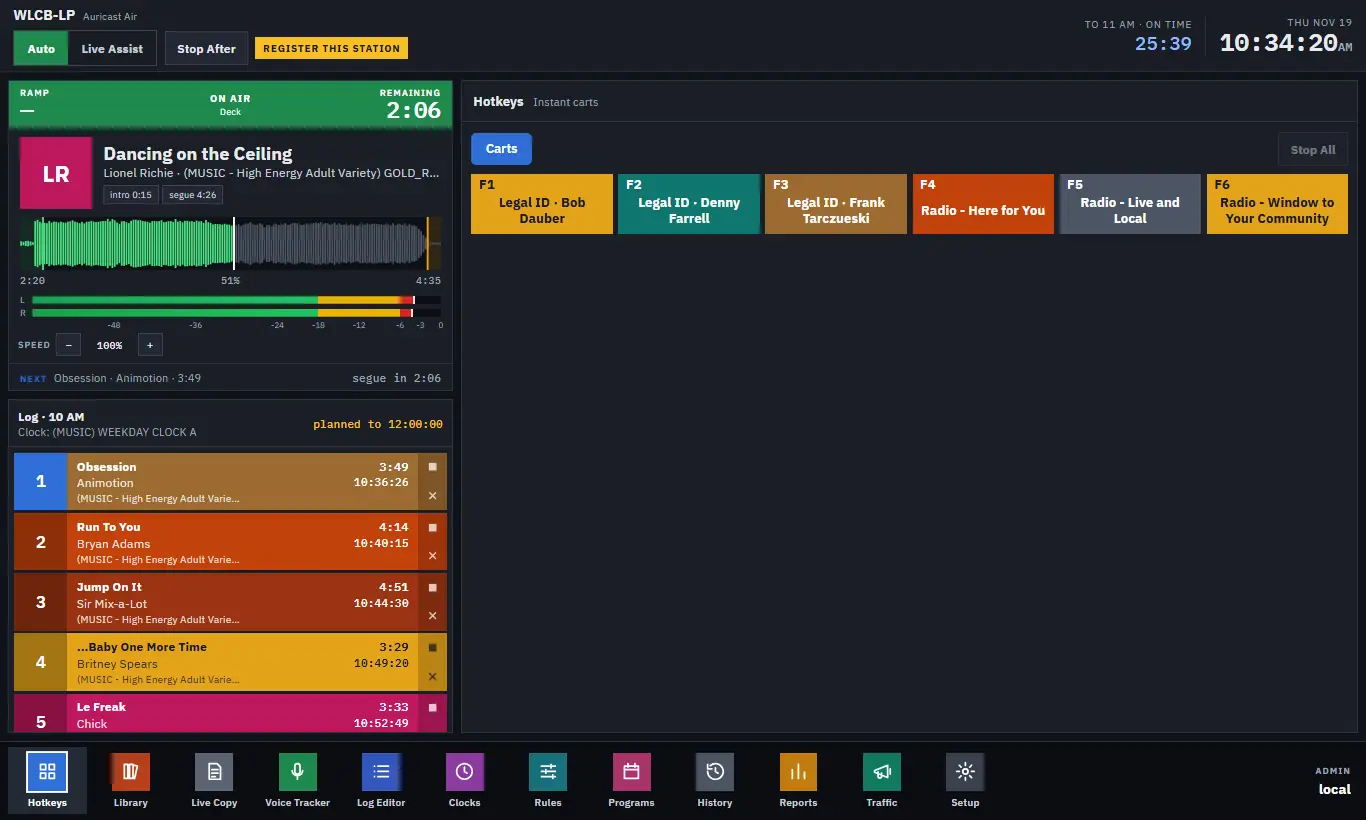
The Library is where you find a track and put it on air. It opens beside the log from the bottom bar.
Finding A Track
- Categories are listed down the left, with All Tracks first and the number of tracks in each. Pick one to limit the list. Folders under a category open and close.
- Search is above the table. Type part of a title, artist or album. Every word you type must appear, case and accents do not matter, and the list updates as you type. Title matches come first.
The table shows:
| Column | Meaning |
|---|---|
| TITLE | The title, with a dot in its category color. |
| ARTIST, YEAR | From the file's tags. Hidden when the panel is narrow, when the artist goes under the title. |
| INTRO | The length of the intro, or "not set". |
| LEN | The length to its segue. |
| LAST PLAYED | When it last played: never, today or yesterday with the time, a date, or in log with a time when it is already planned. |
A track played too recently for the station's separation rules shows its time in red. A new track shows Measuring while its loudness is measured. It cannot go in the log until that finishes, a minute or so.
Only the first 100 matches are listed. Press Show More for the rest. The footer shows how many tracks match.
Putting A Track On Air
Drag a row, or press Insert.
| Do this | Result |
|---|---|
| Drag a track onto a tile in the log | It goes in before that tile. |
| Drag a track onto the deck | It goes next, in the first open place. |
| Drag a track onto Hotkeys | It is added to your My Bank. See Hotkeys. |
| Press Insert on the row, or select it and press Enter | It goes in after the next item. Handy on a touch screen. |
After an insert the row says in log with the time it is planned for. If the log has no room, Auricast may drop a later song to keep a fixed time; the header's countdown shows the result.
Operators cannot place an item within 10 minutes of air. If it is refused, a message says so; see The Log Column.
Looking At A Track
Double-click a row to open it in the full Library, a full screen, with the track already open. Use ← Back To On Air to return. (The tabs of the full Library are for Program Directors and Admins, who also have an Open Full Library button on the panel.)
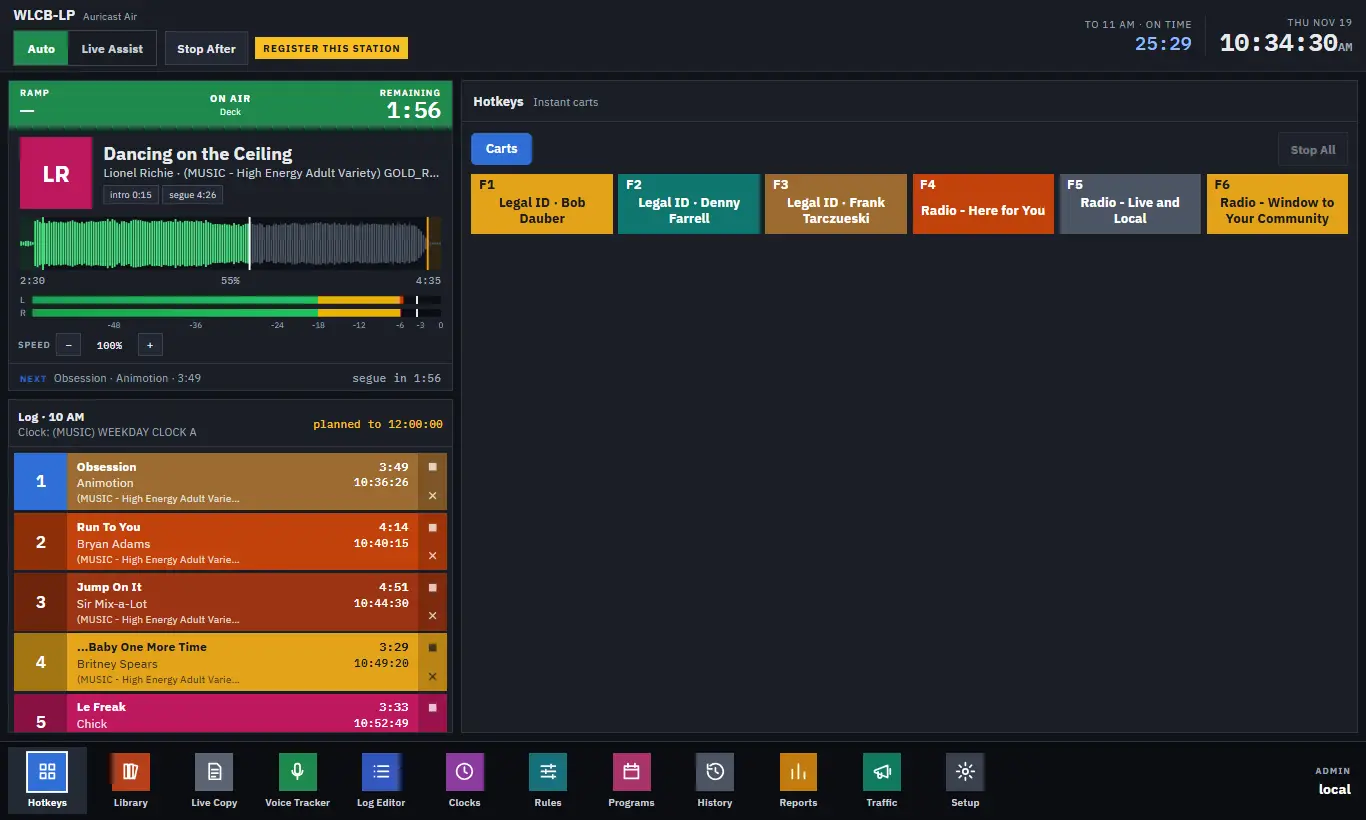
You see the waveform and the track's markers, each a colored line:
| Marker | What it marks |
|---|---|
| Start | Where the sound really begins. The track plays from here. |
| Intro | Where the vocals start. The deck's Ramp counts to this point. |
| Last Vocal | The last sound of singing. The Voice Tracker warns you if a voice runs over it. |
| Segue | Where the next item starts. |
| End | Where the sound ends. A track with no Segue marker hands over here. |
| Hook | The start of a short excerpt, for promos. |
Under the waveform are the tags (title, artist, album and so on) and when the track is allowed to play.
You can listen from the buttons above it:
- Play From Here plays from the marker or play head you chose.
- Play Segue plays the 10 seconds before the segue and 3 seconds after it.
- Zoom 20 s and Whole Track change the view.
- Stop stops it.
Previews play in your browser only, never on air.
As an Operator you can look at all of this but not change it. Program Directors and Admins edit markers, tags and dates.