 Auricast Manuals
The Voice Tracker
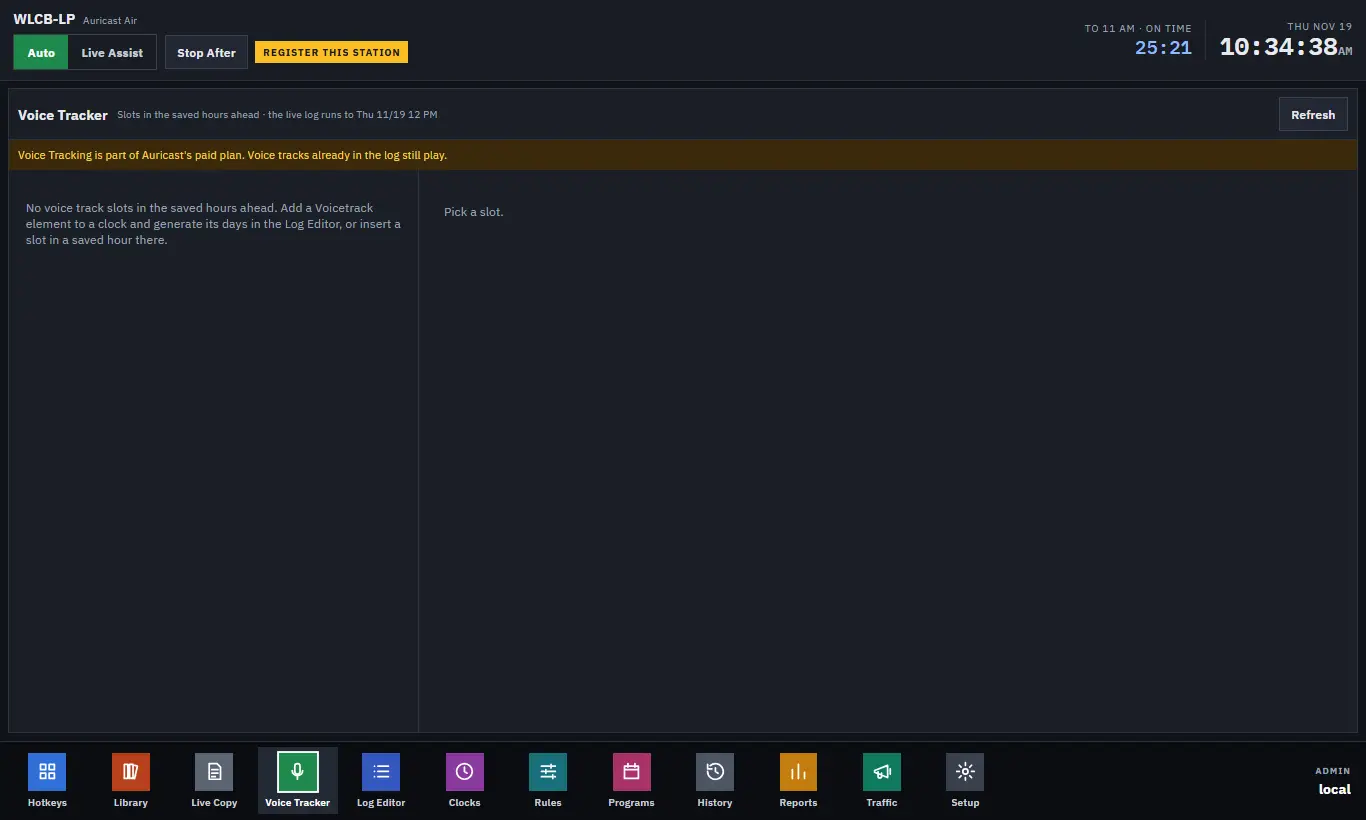
Voice tracking lets you record a talk break ahead of time, on the real end of the song before it, so that on air it sounds live. Open Voice Tracker from the bottom bar.
Operators, Program Directors and Admins can all record. You need a microphone on the PC you record from, and the page must be open over a secure (HTTPS) connection.
Slots
A slot is a place in the log where a voice track goes. Slots come from the clock, or a Program Director inserts them in an hour in the Log Editor. The list on the left shows the slots in the saved hours ahead, each with its hour, the songs before and after it, and a status:
- Empty: nothing recorded. An empty slot at air time is skipped, nothing plays and the songs run together as usual. The screen says "Empty: skipped on air".
- Recorded: a take is in the log.
- live: the hour is already in the live log, so its voice tracks are settled. You can look but not record. Record into hours after it.
If there are no slots, the screen says so and what to do (a clock needs a Voicetrack element). Press Refresh to read the list again.
Recording A Take
- Choose a slot. The detail shows the OUTGOING song, the VOICE, and the INCOMING song.
- Choose your Microphone and say a few words. The meter should move without reaching the top.
- Wear headphones, so the song is not picked up by the microphone.
- Press ● Record. The outgoing song starts playing in your headphones from 10 seconds before its segue. A countdown says Talk in a number of seconds.
- Your recording starts at the song's segue point, exactly as it will on air. The timer shows how long you have talked.
- Press ■ Stop when you are done. The take is saved. Cancel during the countdown abandons it.
If the previous song is not known, you get a plain 3-second count-in instead.
The incoming song starts so that its intro ends as your voice ends. When it has a ramp, the screen tells you "the incoming song comes in … before you stop". For a song with no intro marked, it starts as you finish.
Takes
Each slot keeps its takes, newest first, each with a player. The take marked In the log is the one that will air. To use another, press Use This Take. Leave Empty takes the voice track out and the slot is skipped. Takes you do not use are deleted after 30 days.
Checking And Adjusting The Segue
Once a slot has a take, the segue editor draws the end of the outgoing song, your voice and the start of the incoming song on one timeline, as they will play.
- Two checks tell you whether the voice talks over a vocal: against the outgoing song's Last Vocal marker, and against the incoming song's Intro. A tick means it is clear; a warning says how much it overlaps.
- Voice in nudges the voice 0.5 seconds earlier (◀ 0.5 s) or later (0.5 s ▶). At The Segue (shown when you have moved it) puts it back.
- Songs under the voice sets how far the songs dip under your voice, in decibels.
- ▶ Listen To The Segue plays the three together, from six seconds before your voice.
Changes are saved a moment after the last one.
Re-Recording
You can record again as often as you like. A new take becomes the one in the log. A change takes effect at once if the slot is still ahead of what is loaded; otherwise the screen says it is too late.
Tips
- Talk to the ramp: finish just as the vocals would begin.