 Auricast Manuals
The Log Column
The log column sits under the deck. It lists what is going to play, in order, as colored tiles.
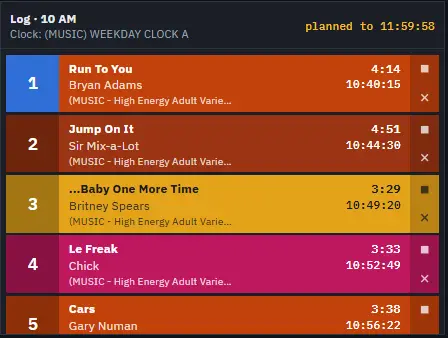
Reading The Log
The heading says Log and the hour, with the clock the hour is made from ("Clock: …"). At the right, planned to gives the time the planned items end. Until a schedule is ready it says "Waiting for the schedule".
An hour heading separates one clock hour from the next. An hour that starts a little early, such as a Legal ID at 7:59:33, appears under its own hour.
Each tile is colored by its category, and shows:
| Part | Meaning |
|---|---|
| Number button | The item's place in the log. The next item is 1. The button is also Play Now; see below. |
| Title and length | The length is the length as it will be heard. If the song's speed is changed, the percentage shows beside it. |
| Artist and start time | When it is expected to start. |
| Category and step | Where in the clock it came from. |
The tile of the item on air has a green number button and cannot be played again or edited.
The log shows the plan only as far as the plan is reliable: an hour that is only just begun at the end of the plan is not shown until it is nearly complete.
Fixed Times And Break Notes
Some items must start at a set time, such as a break at :30 or the top of the hour. The tile does not look different, but the header counts down to the next one and says whether the log will reach it early or late. See The Header And Status.
A break note is a message from the schedule to you, shown as a bar with a note symbol just above the item it belongs to. It might say to read a live tag or change something at the board. The note appears when the item below it starts, and is recorded in History. Nothing is sent or held waiting for you, so read it and act on it as you see fit.
Play Now
Press the number button on any tile that is not on air to start it now.
- The tile moves to the head of the log and starts at once.
- The item on air fades out.
- The item that was loaded to play next goes back into the log right after it.
Use it when the schedule has to give way, for instance when a caller's request or a news item has to go out immediately. Every Operator can use Play Now.
Continue
Each tile has a small button at the right. It matters in Live Assist.
- A stop square means the log stops after this item and waits for you.
- A down arrow means Continue: the next item follows without waiting.
Press it to switch. It works on the item on air as well, which decides whether the log holds after it. Auto ignores it. See Live Assist And Automation.
Removing And Moving Items
Items still waiting in the log can be changed:
- Press the ✕ on a tile to remove it from the log.
- Drag a tile and drop it on another to move it before that tile.
- Drag a track from the Library onto a tile to put it before that tile.
The item on air and the item already loaded cannot be changed here.
The Near-Air Rule
Close to air, Operators are limited. You may not remove, move or replace an item, or insert before one, that is planned within 10 minutes of air. Auricast refuses the change and shows why. A Program Director or Admin may. Play Now and Continue are open to every Operator, so you can always take control of what plays next. The rule is meant to stop accidents when there is no time to recover, not to take the job away from you.
Changes you make are kept: if the station restarts, the log plays as you left it.
When The Log Looks Wrong
- A log that stops short or shows gaps means the schedule has not been planned that far. A Program Director can generate the hours; see Editing The Log.
- An item that disappears from the log without being played was dropped because it could not load or could not fit; History notes it on the item that followed.