 Auricast Manuals
Ingest Jobs And Sources
Setup → Ingest (Program Director or Admin) brings shows, news and podcasts in by itself. A job fetches a show on a schedule, checks that each file plays, and puts a new edition in place only when every part has arrived. A half-new show never airs.
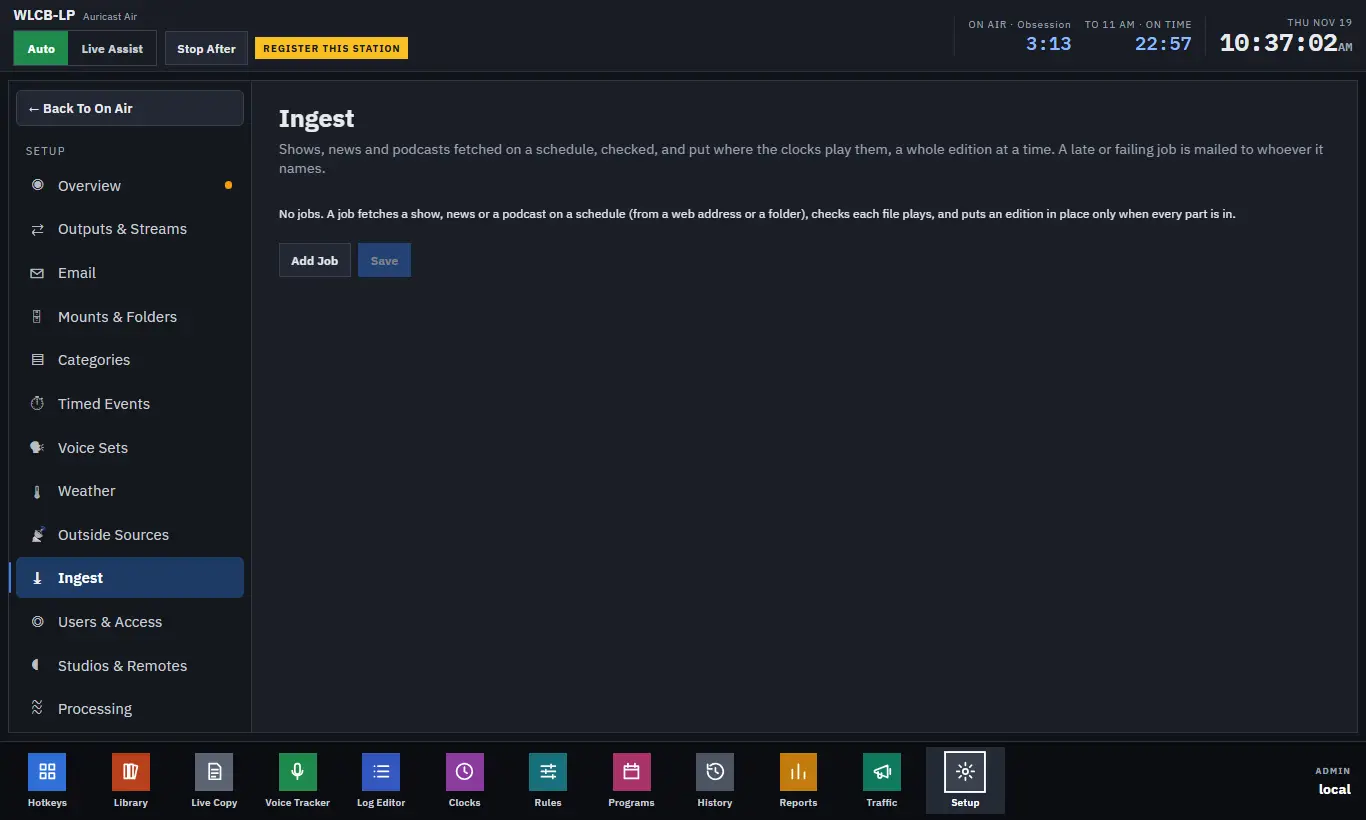
The Job List
Each job is a row. Press ▸ to open it, ▾ to close it. A row shows the job's name and a tag:
- Paused: it is switched off.
- Failing: its last run failed. Hover to see why.
- In: <edition>: the newest edition that is in place.
Run Now checks the job straight away. Add Job makes a new one. After any change press Save, or Undo Changes. Remove Job deletes the job but leaves the files it placed.
Name, Program And Pause
- Name: what the job is called.
- Program: the show it feeds, if any.
- Paused: tick to stop the job without deleting it.
Choosing A Source
Under Source, pick the Kind.
| Kind | Where the files come from |
|---|---|
| Web Address | One address for the whole edition, or one address per part (one line each) |
| Folder | A folder in a library location (for example @Program Uploads/The Show) or on the box. Files are copied, never taken |
| Remote Folder (FTP, SFTP) | A folder on a server |
| Podcast Feed | An RSS or Atom feed |
| E-mail Attachments | Attachments of mail in a mailbox |
| Dropbox | A folder in Dropbox |
| Google Drive (Shared Link) | A Google Drive folder shared with anyone who has the link |
Names And Dates
Addresses and names can hold the date and part number, so one job covers every day. They fill in from the edition's date:
| Write | Gives |
|---|---|
{yyyy} {yy} {mm} {dd} | Year, month and day |
{m} {d} | Month and day without a leading zero |
{dow} | The day of the week |
{n} {nn} | The part number ({nn} adds a leading zero) |
For example https://host/Show {n} - {yyyy}{mm}{dd}.mp3. In a Name box, * matches anything, and an empty name matches any file.
If a show's files carry the date they were released rather than the date you fetch them, set Date Offset (Days), for example −2 for two days ago.
Web Address
Type the Address. Add a User and Password if it asks for one. Passwords are never shown back; the box says "Unchanged" once one is set.
Remote Folder
Type the folder address: ftp://host/shows/, ftps://host/shows/ or sftp://host/shows/. Give a Name pattern, a User and Password.
- For FTP, tick Require TLS to demand an encrypted login.
- For SFTP you may give a Key File on the box instead of a password. The server's host key is remembered the first time. If a server later shows a different one, the job fails and tells you, rather than trusting it silently.
Podcast Feed
Type the Feed Address, with a User and Password if the feed asks. Each new episode, newest first, becomes an edition of its own and is fetched once. In a Named pattern {title} is the episode's title.
E-mail Attachments
Type the Mailbox (for example imaps://mail.example.org/INBOX), User and Password, then narrow it with From (the sender), Subject Has and Attachment (such as *.mp3). The mailbox is only read: nothing is marked, moved or deleted. Auricast looks at the last 7 days of mail, takes each message once, and keeps the attachments for 14 days. A corrected file sent again replaces the first.
Dropbox
Dropbox needs an app of your own so Auricast never holds your Dropbox login.
- In the Dropbox App Console, make a scoped app with the permissions
files.content.readandsharing.read. - In the job, type the Folder (a path like
/Shows/The Show, or a shared folder link a producer sends you), a Name pattern, and the app's App Key. - Save the job. Then press Connect Dropbox. Dropbox opens in a new tab and shows a code.
- Paste the code in the box and press Finish. The job shows Connected.
Connect Again repeats this if the connection is lost.
Google Drive
Share the folder as "anyone with the link". Paste the Folder Link, a Name pattern, and a Google API Key from the Google Cloud Console with the Drive API turned on. Google's own documents are skipped.