 Auricast Manuals
Mounts And Folders
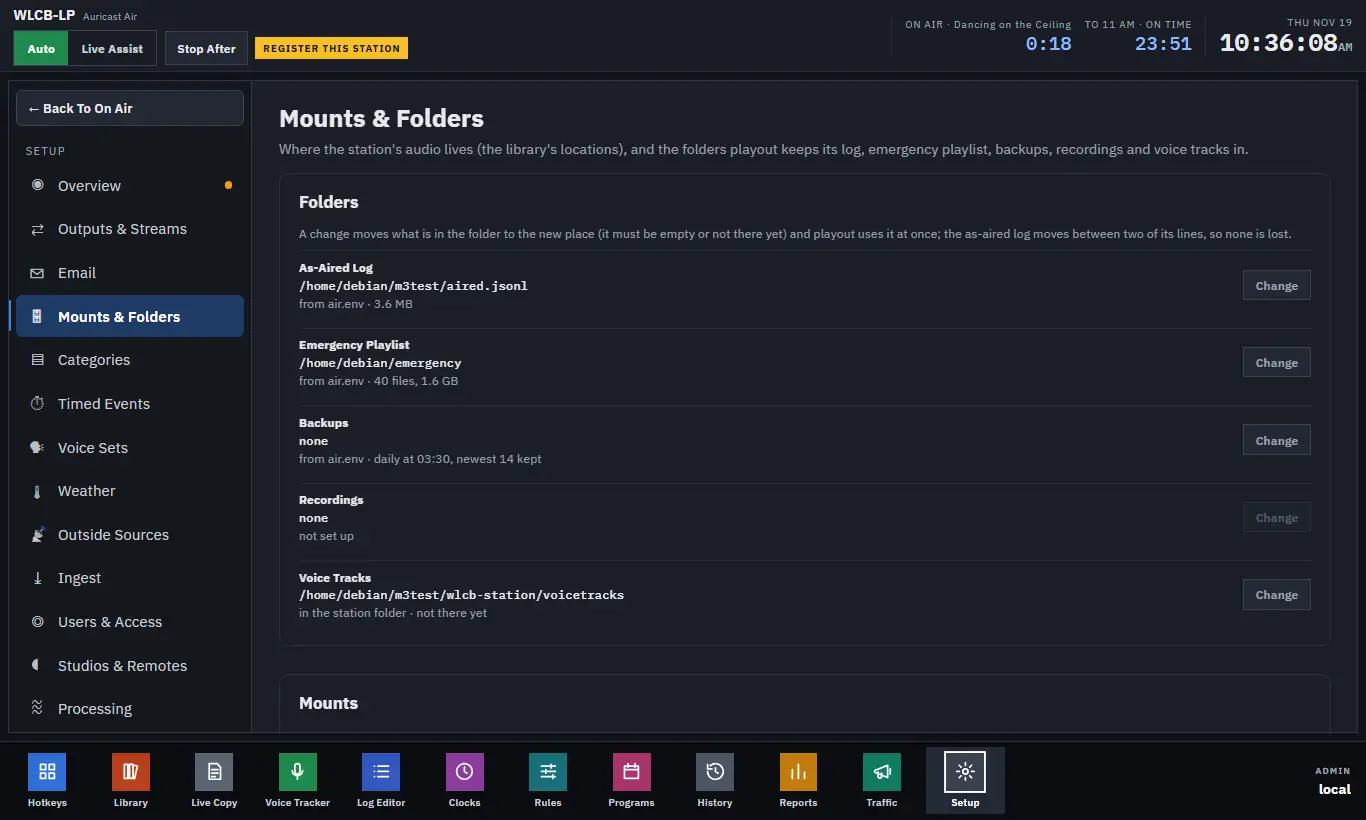
Setup → Mounts & Folders (Admin) has two cards: Folders, where playout keeps its own working files, and Mounts, the places your audio lives.
Library Locations
A location is a place that holds audio: the music share, a folder where producers upload shows, a second NAS. The main location is the library the box was set up with. Paths that name no location belong to it, so nothing you already have changes.
Every other location is named by its name after an @. A file in a location called Program Uploads is @Program Uploads/Sports Weekly/part1.mp3 wherever it appears: in categories, clocks, carts and Ingest jobs. The folder browser lists your locations at the top.
Add A Location
- Choose Add Location.
- Give it a Name. The name is what paths use, so choose it once.
- Choose the Type: - Folder On This Box: a path on the server, for a local disk or a mount the box already has. - Windows/SMB Share (Windows, NAS): an address like
//host/share. - NFS Share: an address likehost:/export. - Type the Address.
- For SMB, fill in the Login, Password (kept on the box, never shown again), Domain if you use one, and SMB version (3.0 is usual; 2.1 for older devices).
- Tick Read-write only if Auricast should write there, for example to take uploads. Locations are read-only by default.
- Press Test. It reports in words what it found ("It works: 9 folders at the top") or what went wrong ("the server refused the login", "the server did not answer").
- Press Save.
Each row then shows the location's state: mounted or not, folders and files, free space, and the last error with a countdown to the next try.
Edit, Mount, Unmount And Remove
- Edit changes a location. Renaming one updates every place that used the old name, in one step.
- Unmount and Mount switch a network location off and on. Unmounting on purpose is reported like an outage.
- Remove deletes the location. It is refused while a category, clock or cart still uses it, and the message names the files that do.
The main location's Edit is not available yet.
When A Location Goes Down
Each location is watched on its own. One that cannot be read keeps its tracks as they were, so a dropped share never empties the library; the other locations carry on updating. Playout skips any file that will not open.
You are told in three ways: the row shows "Unavailable since …" with the reason, Overview's Health card shows a warning, and a mail goes out saying "<name> is unavailable", and another when it is back. See Email and Alerts.
Folders
The Folders card lists the places playout writes to. Each shows where it is, how many files it holds and how big it is.
| Folder | What it holds |
|---|---|
| As-aired log | The log of everything that played |
| Emergency playlist | The songs played when the schedule has nothing. Keep it on the local disk so it still plays when the network share is gone |
| Backups | Daily backups of the station's settings |
| Recordings | Recordings of the air, if recording is set up on the box |
| Voice Tracks | Voice Tracker recordings |
Choose Change on a folder and type the new path. A change moves what is in the folder to the new place, which must be empty or not exist yet, and playout uses it at once. The as-aired log is moved between two of its lines, so no line is lost. Recordings cannot be changed until recording is set up.
The Backups folder also has Daily At (a time) and Keep (how many backups to hold, 1 to 365). See Backups, Restore and System.