 Auricast Manuals
Studios And Remotes
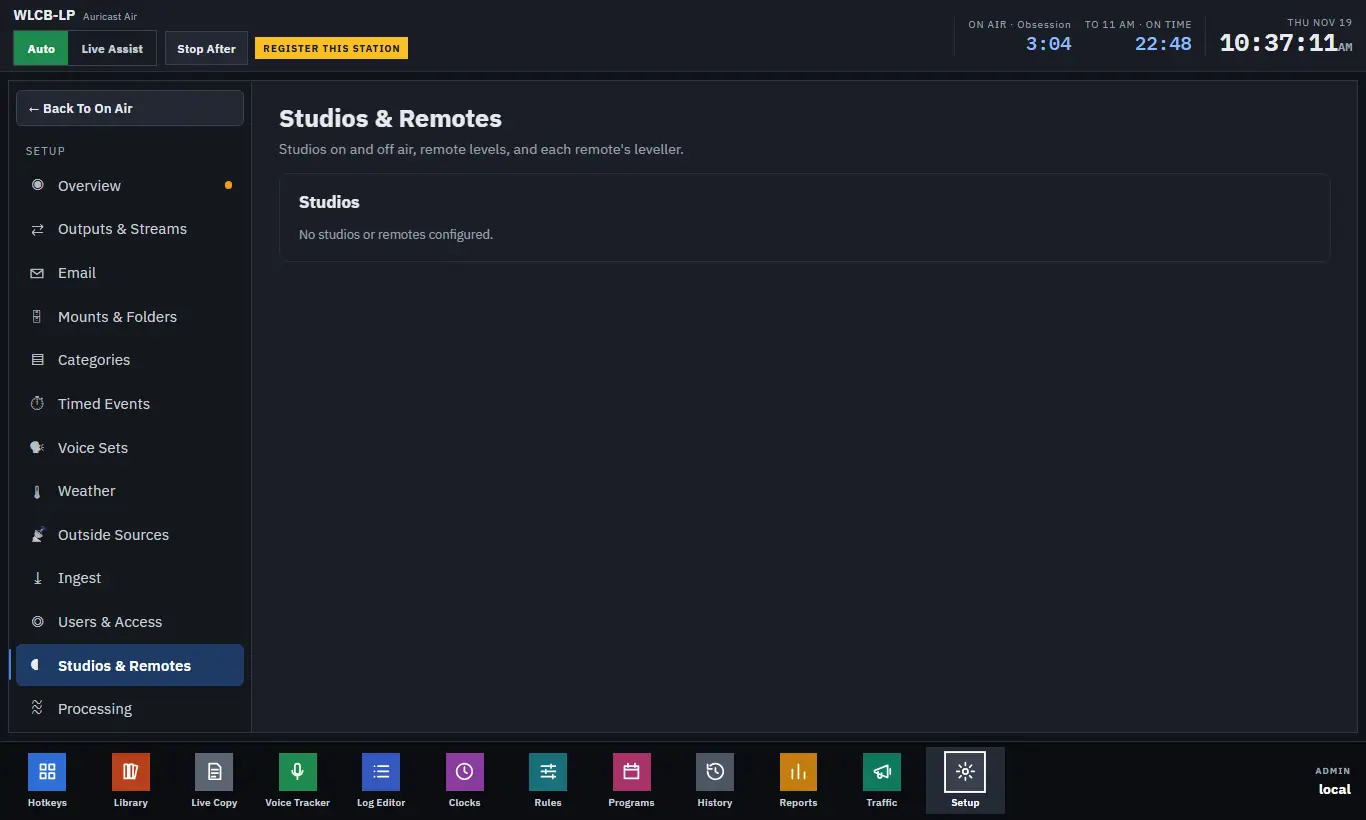
Setup → Studios & Remotes shows each studio and remote the station has, switches them on and off air, and sets the level and processing of each remote.
Studios And Remotes
A studio is a room whose microphones come in on a sound input, such as an AES67 channel. A remote is a person somewhere else who joins from a browser over WebRTC and sends their microphone to the station while hearing the station back. Remote Broadcasting is a paid feature.
Both are mixed into Program 1 and Program 2 before the safety limiter, so the transmitter, the streams and the recorder all carry them. Each gets a mix-minus: everything on air except itself, so nobody hears their own voice back late.
Studios are defined in the station's studios.toml file on the box (the input device, the channels, the mix-minus output). This page controls them once defined. If none are defined it says "No studios or remotes configured."
On Air And Off Air
At the top is a button for each studio and remote, such as Studio B · off or Caller (remote) · ON AIR. Press it to put that studio on air or take it off. The change ramps over a fraction of a second, so it never clicks.
A clock can do the same on a schedule. See also Outside Sources for putting a studio or stream on air for a set time with a Join step.
A remote is on air while it is connected. If a remote's browser closes, Auricast notices after about 20 seconds.
A Remote's Level
Each remote has its own card. Under Level, the − and + buttons change its level in 1 dB steps, from −20 to +20 dB. The setting is taken at once and remembered for that remote's name, so a producer's level is there next time they join.
Processing
Remote audio differs a lot from one producer's mixer to the next, and it can be 6 dB apart. A light chain of processing runs on every remote before its level control. It is on by default and set per remote:
| Setting | What it does |
|---|---|
| Processing | Turns the whole chain on or off |
| High-pass | Cuts rumble, handling noise and wind. Off, 60, 80, 100 or 120 Hz (80 Hz by default) |
| Leveller | Slowly rides the remote toward a target level, so a quiet voice comes up and a loud one comes down. It holds its gain in silence, so a quiet room is not pumped up |
| Target | The leveller's target, from −24 to −10 dBFS (−16 by default) |
| Compressor | Gently evens out peaks |
| Limiter | A peak limiter at −1 dBFS, to stop distortion |
While the leveller works, the card shows how much it is adding or taking away, for example "leveller +4.5 dB". The level control after the chain is a trim.
The Remote's Connection
Remotes start at high quality and step down by themselves if the connection struggles, then back up when it is clean. The remote's own screen shows the rate and whether the link is good, fair or poor. Remotes that cannot connect directly go through a relay; see the License card in Setup Overview for relay hours and your own TURN key.
Trusted PCs In Studios
A PC in a studio is marked as a studio PC under Users & Access. See Users and Access.