 Auricast Manuals
The Library and Categories
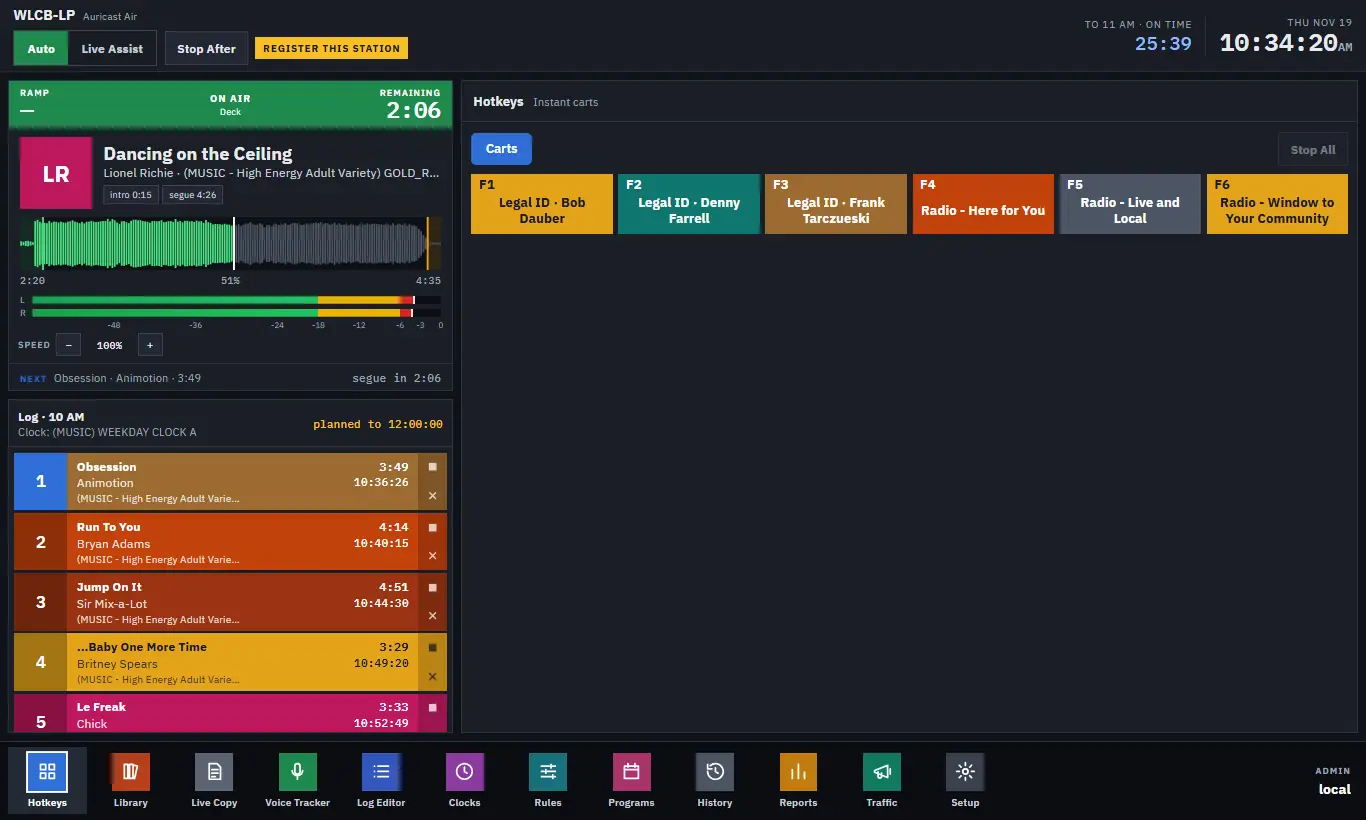
The library is every audio file Auricast can play. Categories are how you group those files so that clocks and rules can talk about them.
Categories
A category is a set of folders. Every playable file in a category's folders is in that category. A file can be in more than one category if it sits under more than one of them.
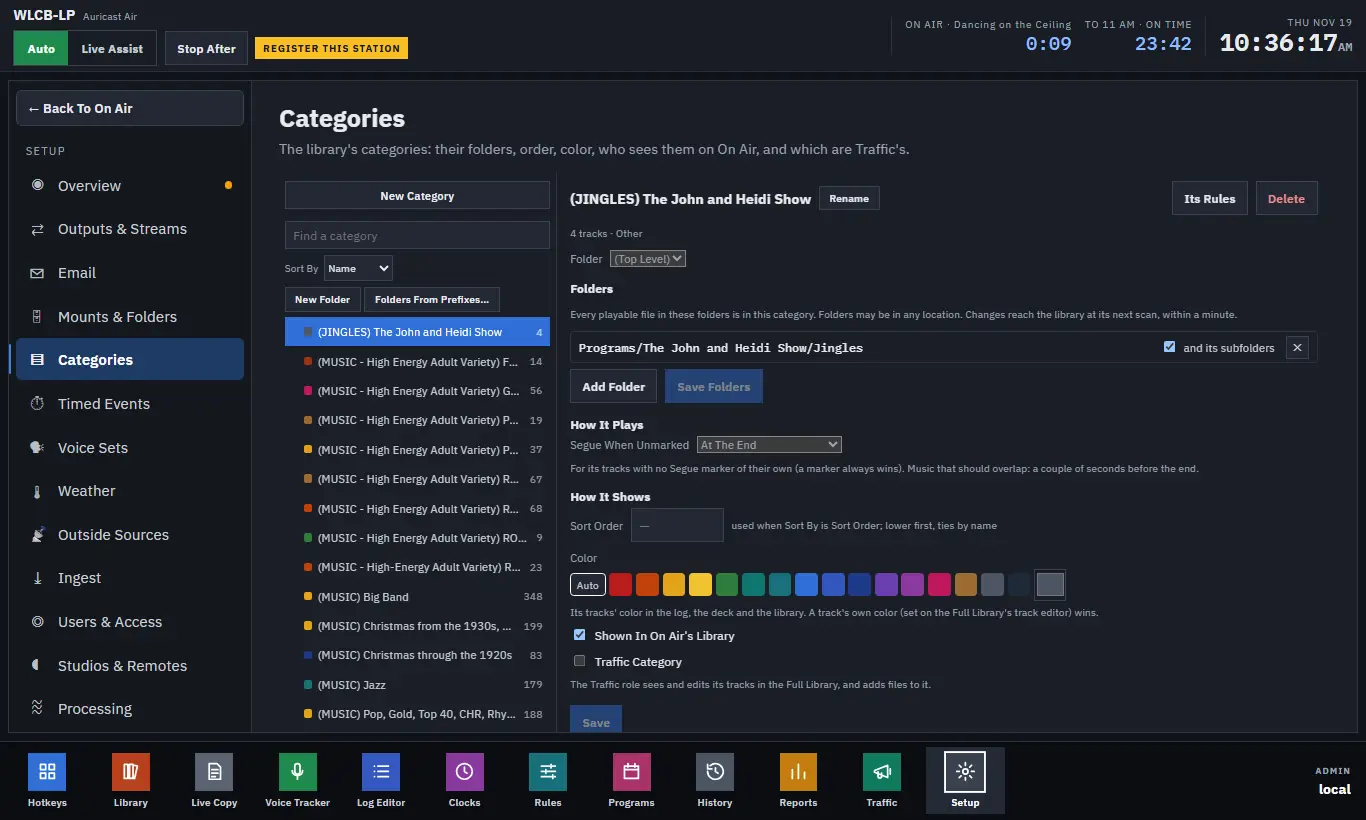
You make and manage categories in Setup → Categories. Operators can browse them but not change them.
Making a category
- Open Setup → Categories and click New Category.
- Give it a Name. Pick the In folder if you want it filed in the tree (see below).
- Choose its kind: - Music: the rules apply, it fills to time, it may change speed, and it is shown as now playing. - Other: imaging, spots, shows. None of those.
- Click Add Folder and browse to the audio folders. Tick and its subfolders where you want them.
- Click Create.
The kind only sets the starting flags. You can change each flag later on the Rules screen (Rules). A category needs at least one folder, and the folder must exist.
Changes reach the library at its next scan, within a minute.
Changing a category
Select it in the list. You can:
- Rename it. Every clock and sequence that uses the name is renamed with it. Hours already saved ahead keep the name they were saved with.
- Delete it. Auricast refuses while a clock or sequence uses it, and tells you which.
- Edit its Folders (the audio folders) and click Save Folders.
- Open Its Rules to jump to the Rules screen with that category selected.
How a category plays and shows
| Setting | What it does |
|---|---|
| Segue When Unmarked | For tracks with no Segue marker: At The End, or Seconds Before The End (0.5 to 15) so that music overlaps. A marker on the track always wins. See Markers. |
| Sort Order | A number used when the list's Sort By is Sort Order. |
| Color | The category's color in the log, the players and the library. Auto picks one from its name. A track's own color wins. |
| Shown In On Air's Library | Untick to hide the category from On Air's library panel. Clocks still play it. |
| Show To | When hidden, the users who still see it. |
| Show During | When hidden, the hours in which it is shown anyway. |
| Traffic Category | The Traffic Manager sees and edits its tracks in the Full Library and can add files to it. |
Folders: a tree of categories
Categories can be grouped into folders, and folders into folders, as deep as you like. Folders only shape the lists: the library on On Air, the Full Library, and Setup → Categories. Clocks, rules and the logs name categories exactly as before, so moving a category between folders changes nothing that plays.
- New Folder makes one, at the top level or inside the selected folder.
- Drag a category or a folder onto a folder to file it. Drop on Drop here for the top level to take it out. A category's own Folder drop-down does the same.
- A selected folder has Rename, New Folder Inside and Delete (what was inside moves up a level), plus Sort Order, Color and visibility settings like a category's. Hiding a folder hides everything inside it. A folder's color is used by categories inside it that have none of their own.
- Within a folder, folders come first and then categories, each in the station's Sort By order (Name or Sort Order).
If your category names carry a bracket prefix, such as (MUSIC) Jazz, Folders From Prefixes… will make a folder for every prefix that two or more categories share. It shows the plan first; click Make N Folders to do it. Category names stay as they are, but under their folder they are shown without the repeated prefix.
Browsing the library
The Library module in On Air shows the tree and the tracks of the category you pick. Picking a folder lists every track under it. Counts update by themselves when the library changes. New files that have just arrived are shown with Measuring until Auricast has measured their loudness; they count and can be found by search, but cannot be played or dragged into the log until then.
The Full Library is the manager: search, sort, columns, and the Needs Attention lists (No Intro Marked, Loudness Not Measured, Never Played, Held Edits, Retired), plus Expiring Soon and Expired (Track Dates, Hours and Expiry). Pick a track to open the track editor (Markers). Tick several tracks, Shift-click for a run, or use Pick All Listed, then Edit N Tracks to change one thing on all of them at once: artist, album, year, genre and other tags, color, retired, dates and hours. Markers and titles are always edited one track at a time.