 Auricast Manuals
Rules
Clocks say what kind of item goes where. Rules say which track from that category. Open the Rules module to set them. Program Directors and Admins can change rules; Operators can look.
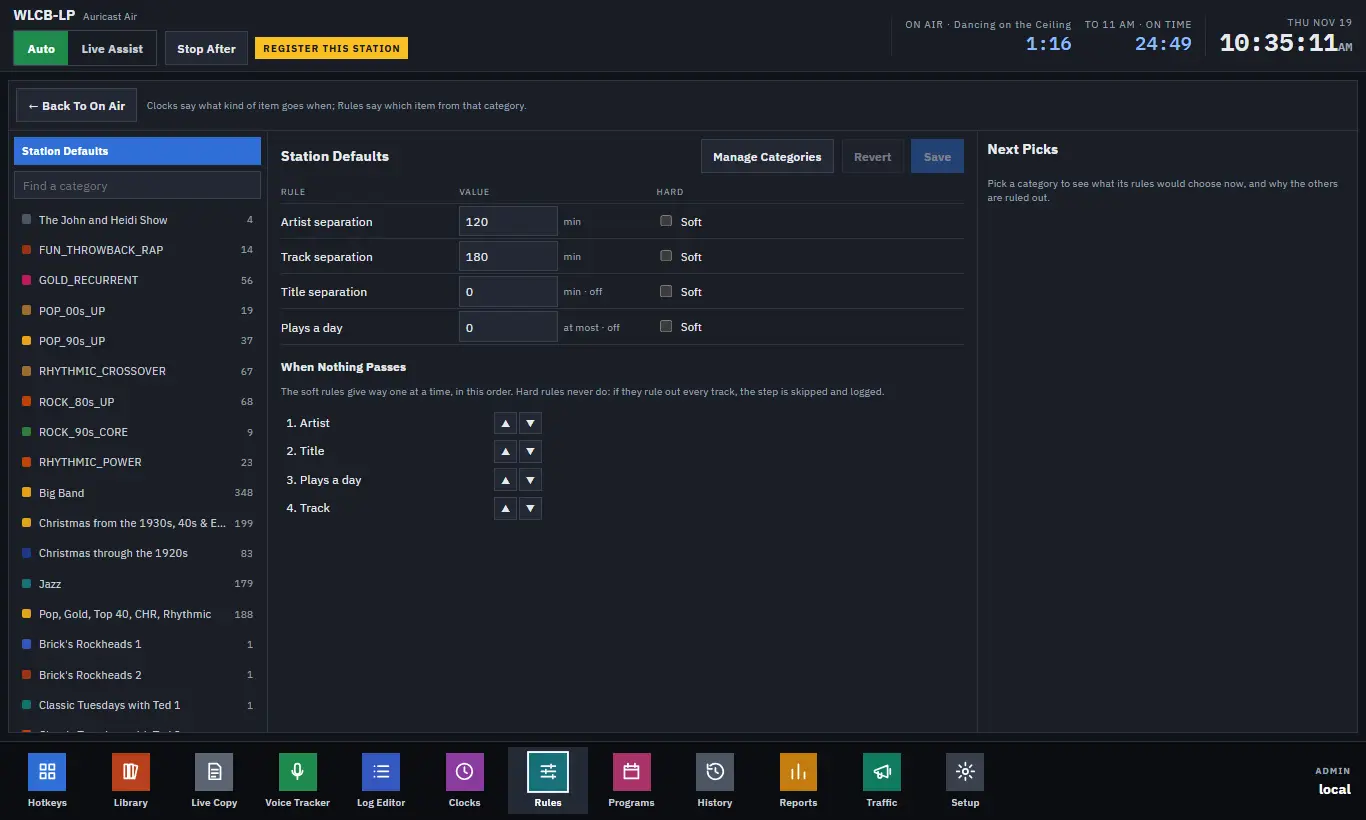
Station Defaults and category rules
The first item in the list, Station Defaults, holds the rules for the whole station. Each category can then override them. A dot beside a category means it has rules of its own. Use Find a category to search.
| Rule | What it does |
|---|---|
| Artist separation | Minutes before the same artist may play again. |
| Track separation | Minutes before the same track may play again. |
| Title separation | Minutes before the same title by anyone may play again, so covers and other versions are kept apart. |
| Plays a day | The most times one track may play in any 24 hours. |
A value of 0 turns the rule off. On a category, leave a value empty to use the station's; the From column shows whether a value is "This category" or "Station".
Click Save to apply. Playout takes the new rules at once and plans the log again.
Hard and soft rules, and the relax order
On Station Defaults, each rule is either Soft or Hard: never relaxed.
When no track in a category passes every rule, Auricast gives way. The soft rules are relaxed one at a time, in the order under When Nothing Passes (move them with the up and down buttons), until something can play. The log records how far it went. A hard rule is never relaxed: if hard rules rule out every track, the step is skipped and logged.
Per-category settings
Select a category to see more:
| Setting | What it does |
|---|---|
| Hours its tracks may play | For example 21:00-06:00. Outside those hours the step is skipped and logged. This is always firm. |
| How it picks | Least recently played (the default), or In order (after the one played last), for things like legal IDs or a sequenced set of promos. |
Flags
| Flag | What it does |
|---|---|
| The rules apply | Without it the category simply picks least recently played, or in order, and none of the separation rules count. |
| Music (fills to time) | The category counts as music: it can fill a gap before a fixed time and is fitted to the hour. |
| May change speed | Its tracks may be played slightly faster or slower to land an hour (Fixed Times and Hour Timing). Show segments, spots and speech should leave this off. |
| Shown as now playing | The track is sent as "now playing" to streams and the web. |
Next Picks
The panel on the right shows what the rules would choose for the selected category right now. It lists the next 20 in rotation with when each last played. The one that would be picked is marked, and each ruled-out track says why, for example that the artist played too recently. It also says whether any rule had to give way. Click Refresh to look again.
Use it to answer "why did that song play?" and "why does this one never come up?".
Managing categories
Manage Categories (or Its Folders for a selected category) takes you to Setup → Categories, where categories are made, renamed, deleted and pointed at folders (The Library and Categories).